How to Use Sphynxify's Video Editor to Create Pro UGC Ads (Step-by-Step)
A complete walkthrough of Sphynxify's built-in video editor — how to trim clips, merge scenes, add text overlays, and finalize a polished UGC ad without touching any other tool.
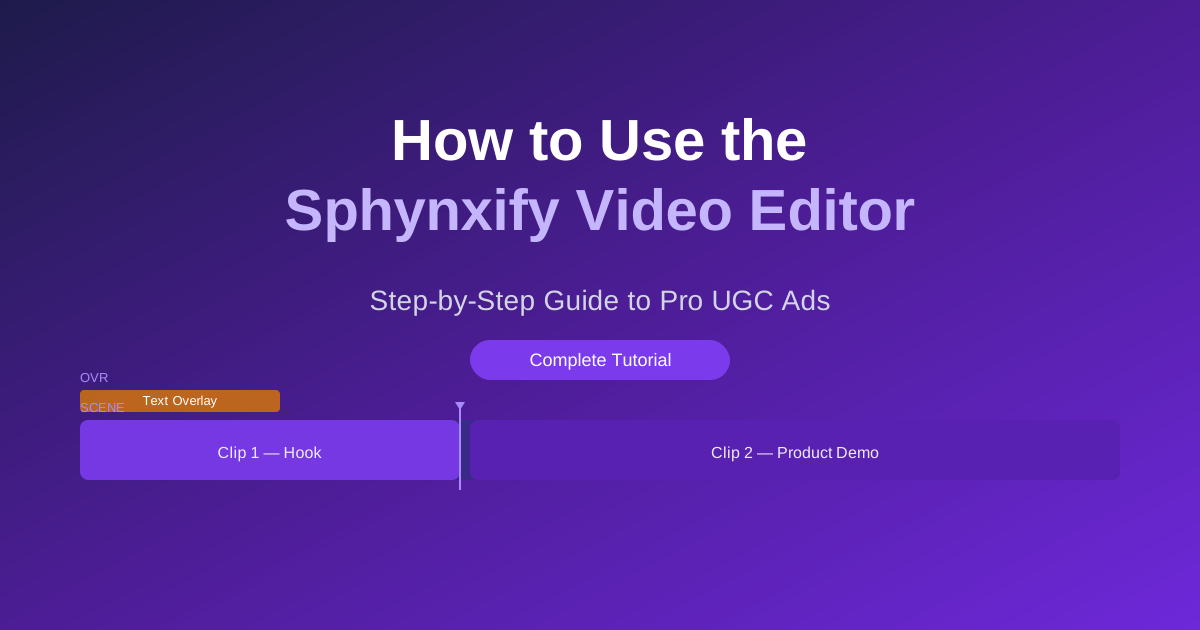
How to Use Sphynxify's Video Editor to Create Pro UGC Ads (Step-by-Step)
You generated your AI UGC videos. Now what?
Most creators stop there — they take one raw clip, post it, and wonder why the results are average. The brands that consistently win with UGC do one thing differently: they edit.
Not Hollywood-level editing. Smart editing. Cutting dead air at the start, stitching a hook clip to a product demo, dropping a text overlay at the exact moment someone might scroll away.
Sphynxify's built-in Video Editor lets you do all of this — without exporting your footage, opening a third-party tool, or learning a new app. Your generated videos go straight into the editor. Trim, merge, overlay, finalize. Done.
This guide walks you through every step.
What the Video Editor Can Do
Before the walkthrough, here's a quick inventory of what's available:
| Feature | What It Does |
|---|---|
| Multi-clip timeline | Arrange up to 10 clips in sequence on a drag-reorder timeline |
| Trim handles | Drag either end of a clip to cut the start or end |
| Delete Left / Delete Right | One-click chop at the current playhead position |
| Fade In / Fade Out | Smooth transitions: None, Fast (0.25s), Medium (0.5s), Slow (1s) |
| Text overlays | Add custom text at any time range, with color, size, and position control |
| Icon overlays | Add emoji-style icons (fire, check, star, etc.) timed to any moment |
| Aspect ratio presets | Switch between 9:16, 16:9, 1:1, and 4:5 in one click |
| Finalize (3 credits) | Renders your edit to a downloadable MP4 via cloud processing |
Step 1: Open the Video Editor
From your dashboard sidebar, click Video Editor. You'll land on your project list.
Click + New Project and give it a name — something like "Handbag April UGC" or "iPhone Ad – Hook Test." Naming matters when you have multiple projects.
You'll land in the editor with three columns:
- Left: Clip Tray — your AI-generated videos ready to drag in
- Center: Video Preview — live playback with overlay rendering
- Right: Overlay Panel — text and icon controls
Step 2: Build Your Scene Sequence
Every great UGC ad is a story in 3 acts:
- Hook (0–3 seconds) — Stops the scroll. Usually a problem, a bold claim, or a visual surprise
- Demo / Proof (4–20 seconds) — Shows the product working, a transformation, or social proof
- CTA (last 3–5 seconds) — Tells them what to do next
The Video Editor's timeline is built around this structure. You add clips in sequence, and the timeline shows each one as a colored block with its label.
To add a clip:
- Find your video in the Clip Tray on the left
- Click the + button on the clip, or drag it directly onto the timeline
- The clip appears in the SCENE row; repeat for each clip in order
To reorder clips: Drag the clip blocks left or right on the timeline.
Tip: If your clip duration shows as 30 seconds when you know it's shorter, the editor will auto-correct it within a second as it reads the actual video length.
Step 3: Trim Your Clips
Raw AI-generated clips often have a half-second of silence at the start and a fade-out tail at the end. Cut both.
Method 1: Drag the trim handles
- Click a clip on the timeline to select it
- Drag the left edge right to trim the start
- Drag the right edge left to trim the end
- Watch the timecodes update live in the top bar (
00:01.2 | 00:07.4)
Method 2: Playhead chop (faster)
- Play the video and pause at the exact frame you want to cut
- Click Delete Left to remove everything before the playhead
- Click Delete Right to remove everything after it
Example workflow for a 10-second clip:
- The first 0.5s is silence → drag left trim handle to 0.5s
- The last 1.5s is a fade-out → Delete Right at 8.5s
This alone makes your ad feel faster and more professional.
Step 4: Set Fade Transitions Between Clips
When two clips play back to back, a hard cut works fine for fast-paced ads. But if you want a smoother feel between scenes, add a fade.
Select a clip on the timeline. In the bottom bar you'll see Fade in and Fade out dropdowns.
| Setting | Best Use |
|---|---|
| None | Fast-paced ads, TikTok hooks, quick cuts |
| Fast (0.25s) | Most ads — subtle polish without slowing the pace |
| Medium (0.5s) | Emotion-driven content, testimonials |
| Slow (1s) | Brand-awareness style, lifestyle content |
Set the Fade out on the first clip and Fade in on the second to create a smooth crossfade feel.
Step 5: Add Text Overlays
Text overlays are where most UGC ads go from "good" to "STOP-scroll." They reinforce your verbal message visually — critical for viewers watching on mute (which is most of TikTok and Instagram).
To add a text overlay:
- In the right panel, click the Text tab
- Click + Add Text
- A new overlay appears. Type your text in the input box
- Set the Start and End times (in seconds) for when it appears
- Choose size (drag the slider) and color (click a swatch)
- Drag it on the video preview to reposition it anywhere on the frame
High-converting text overlay strategy:
- 0–2s: Show your hook as text even if it's already spoken ("Wait, this actually works?")
- 5–8s: Key product benefit ("Sold 3,000 units last month")
- Last 3s: CTA text ("Link in bio", "Use code SAVE20", "Shop now")
You can stack multiple overlays — they all appear in the Active list in the right panel and show as a gold bar on the OVR row of the timeline.
Step 6: Add Icon Overlays (Optional)
Icon overlays are small PNG icons — fire, check, star, thumbs up — that you can time to specific moments. Great for:
- A fire icon when you say "this is selling out"
- A check icon when listing product features
- A star icon on a testimonial quote
Same workflow as text: click the Emoji tab → choose an icon → set start/end → drag to position on the preview.
Step 7: Check Your Aspect Ratio
Before finalizing, make sure your aspect ratio matches the platform:
| Platform | Ratio | When to Use |
|---|---|---|
| TikTok, Instagram Reels | 9:16 | Vertical full-screen — default for most UGC |
| Instagram Feed, YouTube | 16:9 | Landscape — product reviews, longer content |
| Instagram Feed (square) | 1:1 | Consistent grid look |
| Pinterest, some Meta ads | 4:5 | Slightly taller than square |
The ratio buttons are in the top bar of the preview area. Switching updates the preview frame instantly.
Step 8: Save Your Work
The editor auto-saves every 30 seconds when you've made changes. You'll see a "Saved" indicator in the top right.
You can also click Save manually at any time. This saves your edit state — clips, trims, overlays, everything — without using any credits.
Save often before finalizing, especially if you're going to test different versions.
Step 9: Finalize (Render to MP4)
When you're happy with your edit, click Finalize (3 credits).
This sends your edit to Sphynxify's cloud rendering engine, which:
- Downloads your source clips
- Applies all trims and fades via FFmpeg
- Composites all text and icon overlays
- Outputs a single clean MP4
The button changes to Finalizing… while it processes (typically 15–30 seconds for most projects). When done, it turns green: Download Video.
Click Download Video to get your MP4, or navigate back to the project list — you'll see a Download link directly on the project card.
Step 10: Post and Test
A finalized video is ready to post directly to TikTok, Instagram Reels, YouTube Shorts, or Facebook. No additional export steps, no format conversion.
Quick posting checklist:
- ✅ Aspect ratio matches platform
- ✅ Hook visible in first frame (no black card)
- ✅ Text overlays readable (white or light on dark backgrounds)
- ✅ Under 60 seconds for Reels, under 3 minutes for TikTok
- ✅ Sound-off test: does the message land with just text overlays?
The Full Workflow at a Glance
Generate videos in Sphynxify
  ↓
Open Video Editor → New Project
  ↓
Add clips from Clip Tray (in Hook → Demo → CTA order)
  ↓
Trim dead air from start/end of each clip
  ↓
Set fade transitions between clips
  ↓
Add text overlays at key moments
  ↓
Set correct aspect ratio for platform
  ↓
Save draft
  ↓
Finalize (3 credits) → Download MP4
  ↓
Post to TikTok / Reels / Shorts
Total time from open to finalized ad: under 10 minutes.
Common Mistakes to Avoid
Keeping the full raw clip length The first 0.5–1 second of silence kills your ad's performance. Always trim the start. Attention is lost before the hook even starts.
Forgetting text overlays Most people watch video on mute. No text = your message is invisible to 50%+ of your audience.
Wrong aspect ratio A 16:9 video posted to Reels will have black bars on the sides. Always check before finalizing.
Finalizing before saving Save your draft first so you can come back and create variations without starting from scratch.
What to Build Next
Now that you know the editor, here's the natural next step:
Create 3 variations of the same ad:
- Version A — straight demo (no hook clip)
- Version B — problem hook + demo
- Version C — social proof hook ("3,000 people bought this") + demo
Use the same clips, different trims and overlay text. Three ads from one project. Run all three as Meta ad variants simultaneously and let the data pick the winner.
This is how top UGC advertisers operate — not one polished video, but many quick variations tested fast.
Ready to build your first edit? Open the Video Editor →
Already have videos generated? They're waiting in your Clip Tray.