Cut, Merge, Hook: The Editing Strategy Behind High-Converting UGC Reels
Learn the exact video editing structure that top UGC advertisers use to stop scrolls and drive clicks — and how to build it inside Sphynxify's Video Editor in minutes.
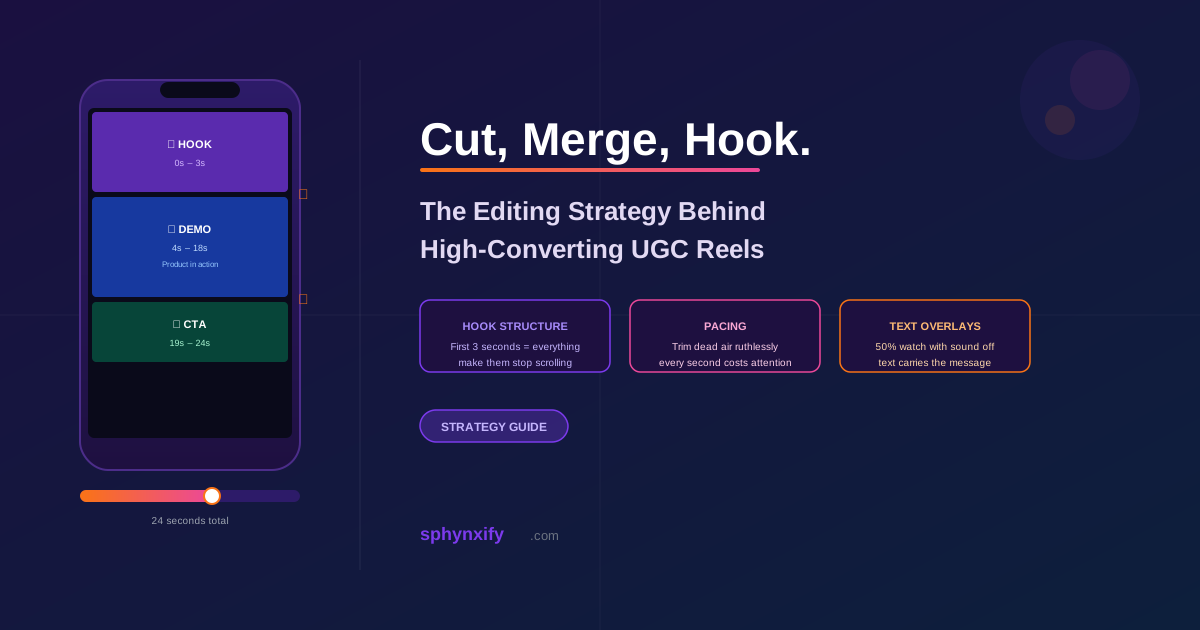
Cut, Merge, Hook: The Editing Strategy Behind High-Converting UGC Reels
Most UGC videos fail before the product is ever shown.
Not because the hook was bad. Not because the actor was unconvincing. They fail because someone exported a raw clip, posted it, and hoped the algorithm would be kind.
The brands that consistently crush it with UGC reels do something that looks boring from the outside: they edit with intention. Not fancy — intentional. Every cut is a decision. Every second of footage earns its place in the final video.
This guide breaks down exactly what that looks like, and shows you how to build it yourself inside Sphynxify's Video Editor.
Why Editing Is the Multiplier
Here's a number that should change how you think about UGC production:
The average viewer decides whether to keep watching within 1.7 seconds.
Not 3 seconds. Not 5 seconds. 1.7 seconds.
That means the quality of your raw footage matters far less than the quality of your opening frame and your first cut. A mediocre product clip with a sharp hook will outperform a polished product video with a slow start almost every time.
Editing is how you take a set of decent clips and engineer them into something that demands attention. It's not about making things look expensive. It's about removing everything that doesn't serve the viewer and front-loading everything that does.
The 3-Part Structure That Works
Every high-converting UGC reel follows the same basic architecture. Once you see it, you'll notice it everywhere.
Part 1: The Hook (0–3 seconds)
Goal: Stop the scroll. Create a question or tension that needs resolution.
The hook is not about your product. It's about your viewer's problem, desire, or curiosity. The moment they feel that itch, they'll keep watching.
Hook formats that work:
| Type | Example |
|---|---|
| Problem statement | "I couldn't stop breaking out — until I tried this" |
| Surprising result | "I went from 0 to 10,000 followers in 8 weeks" |
| Bold claim | "This replaced every other bag I own" |
| Challenge/skepticism | "I didn't believe it would work, so I tested it" |
| Visual hook | Rapid cut to something unexpected — a transformation, a before shot |
Editing note for your hook clip: Trim it to the bone. Cut the first second of hesitation. Cut the last half-second of pause. The hook should feel like it starts mid-energy.
Part 2: The Demo (4–18 seconds)
Goal: Show the product working, the transformation happening, or the proof existing.
This is where most of your screen time lives, but it should never feel slow. If you have multiple demo clips — product from different angles, a person using it, a packing shot — merge them into a tight sequence.
What makes a demo land:
- Cut on motion — transitions feel invisible when you cut as something is still moving
- Lead with visual — show the change/result before explaining it
- Text overlay every benefit — don't rely on audio to carry key claims ("Waterproof up to 30m", "3x faster than competitors")
Part 3: The CTA (last 3–5 seconds)
Goal: Convert attention into action before the viewer leaves.
The CTA clip doesn't need to be complicated. A clean end card or a simple on-camera line — "Link in bio to grab yours" — with text reinforcing the action is enough.
Common CTA text overlays:
- "Shop the link in bio"
- "Use code [NAME] for 15% off"
- "Limited stock — link in bio"
- "Which color would you pick? Comment below"
Building This Structure in Sphynxify
Here's how the Hook → Demo → CTA structure maps to the Video Editor's actual tools:
Getting clips into the right order
- Open Video Editor from the sidebar
- Create a new project
- In the Clip Tray, your generated videos are sorted by generation date
- Drag clips onto the timeline in order: Hook → Demo → CTA
- Each clip appears as a labeled block in the SCENE row
If you need to swap the order, drag timeline blocks left or right.
Trimming each clip ruthlessly
Select the hook clip. Drag the left trim handle right until you've cut the silent start. Drag the right trim handle left to cut any trailing silence or hesitation.
Then move to the demo clip. Use Delete Left (plays to your cut point, then removes everything before the playhead) for a fast trim when you can hear exactly where the good content starts.
Rule of thumb: if you hesitated about a frame, cut it.
Setting up clean transitions
Select the first clip. In the bottom bar, set Fade Out to Fast (0.25s). Select the second clip. Set Fade In to Fast (0.25s).
This creates a nearly invisible bridging transition. It's subtle enough that viewers don't notice it, but the absence of it would make cuts feel jarring.
For a testimonial pivot or a mood shift between demo and CTA, go up to Medium (0.5s) fade.
Adding the text layer
Click the Text tab in the right panel. Add your overlays one at a time:
- 0s – 2s: Hook text (repeat or reinforce what's being said out loud)
- 5s – 10s: Main benefit or proof point
- 18s – 24s: CTA text
Drag each overlay in the video preview to position it. White text sits above the subject; bottom-third text is usually safest for not covering faces.
Pacing: The Thing Most Guides Skip
Pacing is how a video feels to move. A well-paced 25-second reel feels energetic and leaves viewers wanting more. A slow 20-second reel feels like work.
Pacing comes from two things:
1. Length of each segment The hook should be your shortest segment in elapsed time, even if it's your most important. 2–3 seconds. Demo can breathe a bit at 10–15 seconds. CTA should feel like a confident close — not a tail that fizzles out.
2. Timing of cuts Cutting before a natural pause removes dead air that kills momentum. If your actor says "...and that's why I love it [pause]... I use it every day," cut right before the pause.
In Sphynxify's editor, you can do this precisely:
- Play the clip using the preview player
- Pause at the exact moment to cut
- Use Delete Left or Delete Right from the playhead
The Sound-Off Test
Before you finalize anything, run the sound-off test:
- Cover your speakers (or mute the tab)
- Play the preview
- Ask: does the message still land?
If the answer is no, add more text overlays. At least 50% of Reels and TikTok views happen with sound off. Your text is carrying half the work.
This is why the text overlay timeline (the gold OVR row) should look visually dense when you look at it. If it's mostly empty, you're not using one of your best tools.
The 3-Variation Method
One polished video is not a strategy. A strategy is systematically testing variations until you know what your audience responds to.
Here's the workflow:
| Version | Hook Type | Demo | CTA |
|---|---|---|---|
| A | Problem hook (verbal) | Standard demo | Soft CTA |
| B | Bold claim (text first) | Same demo + testimonial clip | Discount code CTA |
| C | Visual hook (result first, then rewind) | Same demo | Urgency CTA |
In Sphynxify, save your base project after step 3 (post-trim, pre-overlay). Duplicate the project (or create a new one with the same clips). Rearrange, add different text overlays, use a different opening clip.
Three finished ads. Same production session.
Run them as ad variants on Meta or TikTok Ads Manager. After 5,000 impressions each, one will be outperforming the others by a measurable margin. Pause the other two. Scale the winner. Build new variants off that.
Quick Reference: What to Cut, Always
| Situation | What to Cut |
|---|---|
| Clip starts with the creator looking off-frame | First 0.5–1s |
| Any "um", "so", or filler phrase before the hook | Everything before the first word |
| Trailing pause after the last word of a segment | Last 0.3–0.5s |
| Any B-roll that isn't reinforcing a claim | The whole shot |
| End-card that runs more than 4 seconds | Everything after 3–4s |
Putting It Together: 10-Minute Reel Workflow
Here's the exact sequence to go from clips to finished reel in a single session:
- Generate your hook clip, demo clip, and CTA clip in Sphynxify (or use videos you already have)
- Create a new Video Editor project
- Add clips to timeline in Hook → Demo → CTA order
- Trim the start and end of each clip (2–3 minutes)
- Set fades: Fast fade out/in at each cut
- Add text overlays: Hook text, 1–2 benefit overlays, CTA text
- Run sound-off test — add more text if message isn't clear
- Check aspect ratio (9:16 for Reels)
- Save draft — create variations if wanted
- Finalize → Download → Post
Total time: under 10 minutes for a single version. Under 20 minutes for three variations.
Stop treating UGC as "post the raw clip and hope." Edit with structure, trim with intention, and test with variations. The results aren't subtle — a well-edited reel consistently outperforms the same content posted raw.